
GUIDE

How to Choose and Set Up a Calendar Widget

Put a calendar on your iPhone or Android home screen and you can check today's events or free days this month without opening an app. Here are the main widget types, what to look for, and how to add one.

What is a calendar widget?

A calendar widget is a small panel that shows your calendar or upcoming events on the home screen or Lock Screen. Because your events are in view every time you unlock your phone, you're less likely to miss something.

On both iPhone and Android, you can add one with built-in features as long as your calendar app supports widgets. There's no extra cost.
Main types of calendar widgets

  • Month view — Shows a whole month. Good for seeing free days and how busy the month is at a glance.
  • Week / multi-day view — Shows one or two weeks, or 3–5 days. Lets you read upcoming events in larger text.
  • Event list — Lists upcoming events in time order. Good if you have many events per day.
  • Lock Screen — Shows events on the iPhone Lock Screen so you can check them without unlocking.

What to look for

  • Size and range — Use a small widget for today and a large one for the whole month.
  • Readability — Text gets small when you have many events. An app that lets you change the text size helps.
  • Holidays — Public holidays shown on the calendar make planning easier.
  • Start of the week — Being able to start the week on Sunday or Monday makes it feel like your planner.
  • Design and dark mode — The widget is always on screen, so it should fit your wallpaper and dark mode.

How to add a widget on iPhone

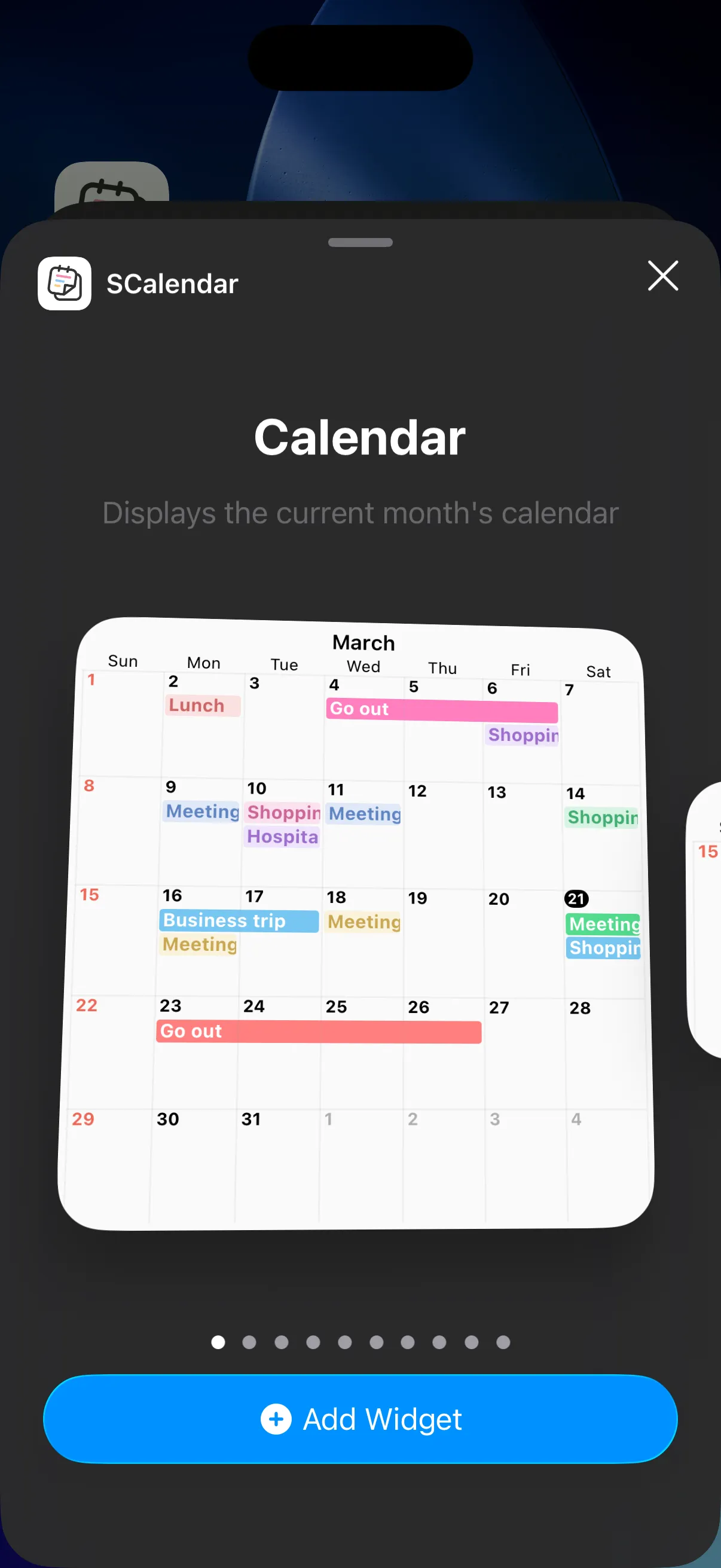
  1. Touch and hold an empty area of the home screen, then tap Edit → Add Widget at the top left.
  2. Search for your calendar app and select it.
  3. Swipe to choose a size and type, then tap Add Widget.

Step-by-step instructions with screenshots for Caly are in Widget Setup (iOS). To show a calendar on the Lock Screen, see Lock Screen Calendar (iOS).

Caly's This Month's Calendar widget in the iPhone widget gallery

How to add a widget on Android

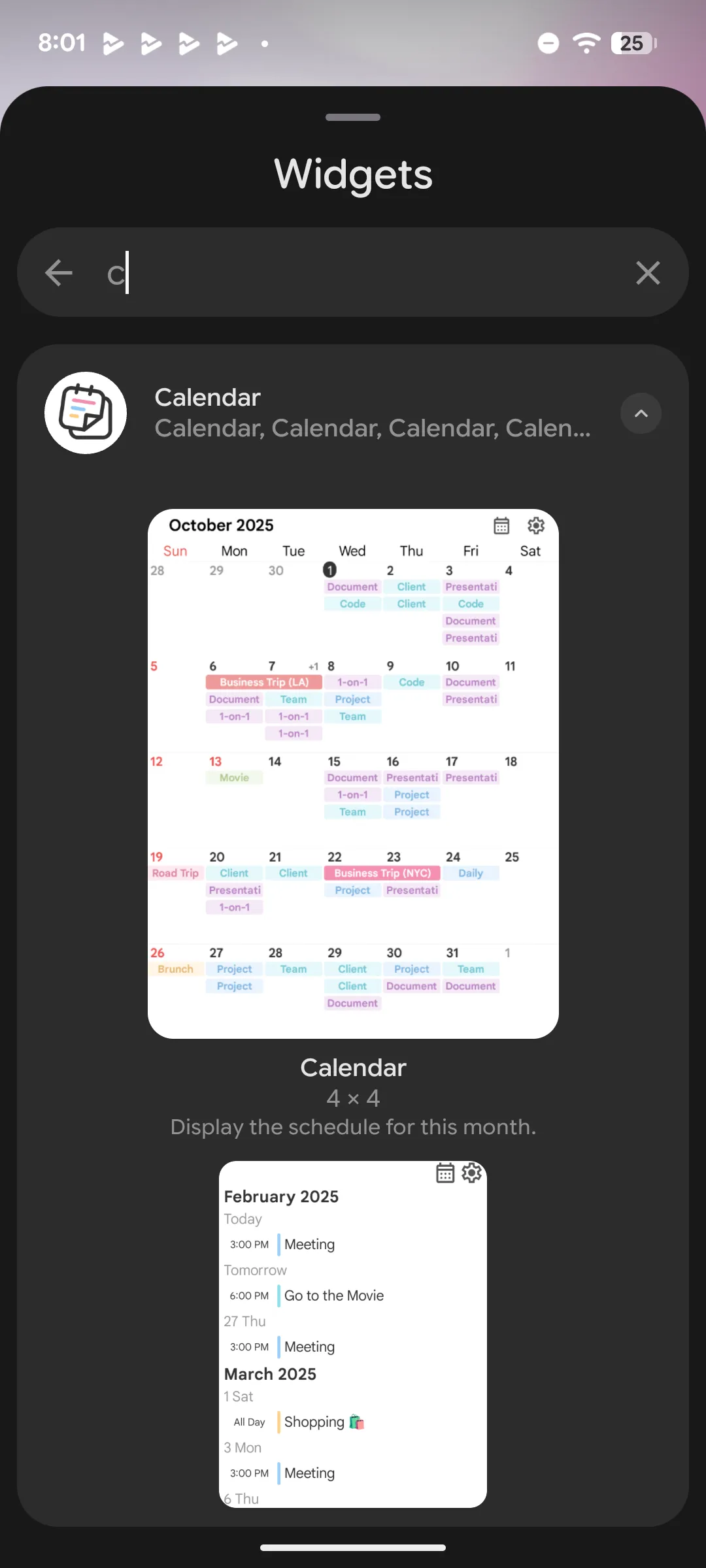
  1. Touch and hold an empty area of the home screen, then tap Widgets.
  2. Search for your calendar app and select it.
  3. Touch and hold the widget you want and drag it onto the home screen.

Step-by-step instructions with screenshots for Caly are in Widget Setup (Android).

Caly's widgets in the Android widget list

Caly's widgets

Caly, a simple calendar app, lets you use every widget for free — no purchase needed.

iPhone and iPad (15 types)

  • Small — Today's Schedule / Calendar
  • Medium — This & Next Month's Calendar / Schedule & Calendar / 1 Week / 2 Weeks / 3 Days / 4 Days / 5 Days
  • Large — This Month's Calendar / 4 Weeks / Calendar & Events
  • Lock Screen — Schedule / 2 Weeks / Add Event

Your app settings — theme, text size, start of the week, and holidays — are reflected in the widgets automatically.

Android (4 types)

  • This Month / 2 Weeks / This Week / Event List

You can change the background opacity, text color, and dark mode for each widget.

If the widget doesn't update

Caly's widgets update about once an hour, and whenever you add or change an event in the app. If a widget looks out of date, open Caly once to refresh it.

Caly is free to download

Download on the App StoreGet it on Google Play

Related guides

Widget Setup (iOS)→Widget Setup (Android)→Lock Screen Calendar (iOS)→Appearance→