Customize
Lock Screen Calendar (iOS)
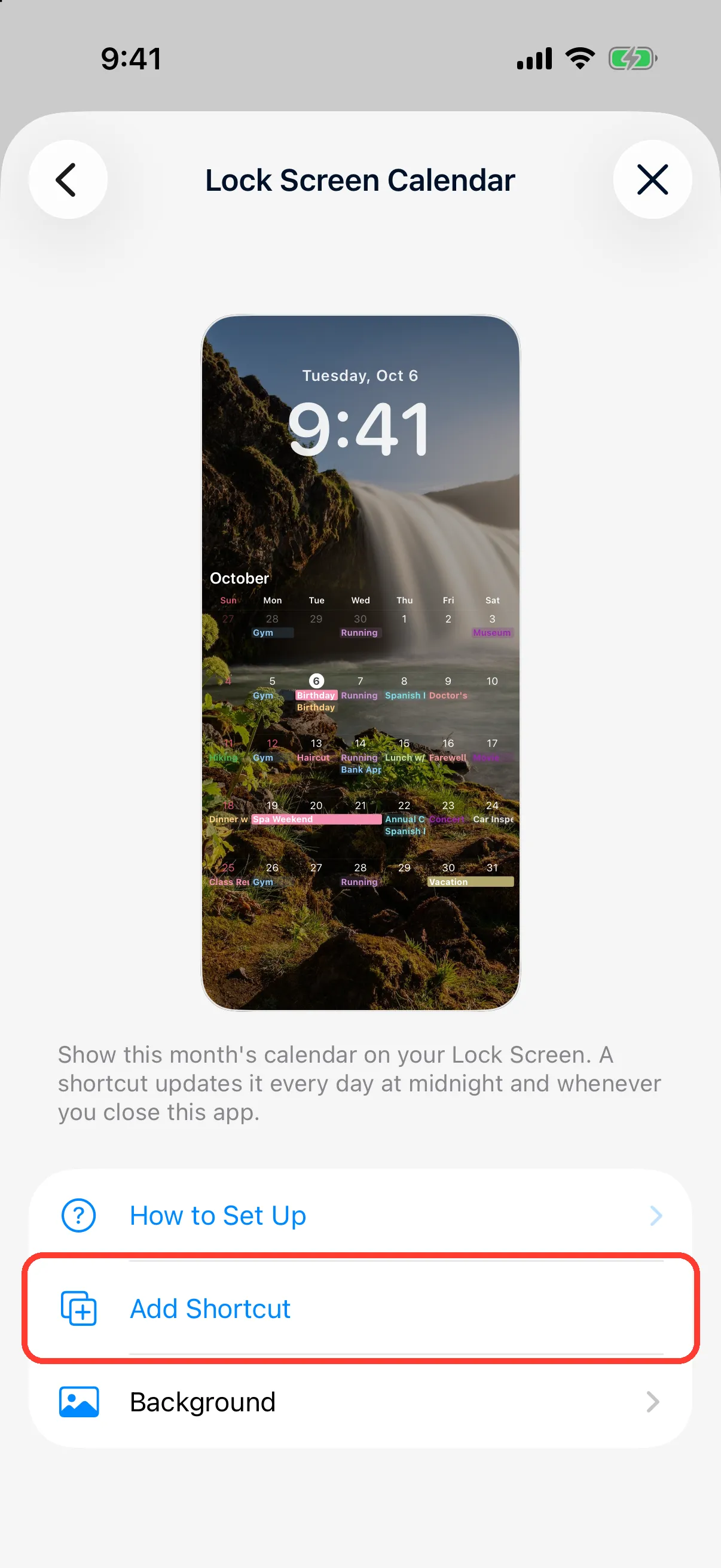
Learn how to set this month's calendar as your iPhone Lock Screen wallpaper and update it automatically every day. Available on iOS 26 or later. The steps differ between iOS 27 or later and iOS 26, so follow the steps for your version.
Steps for iOS 27 or later
1
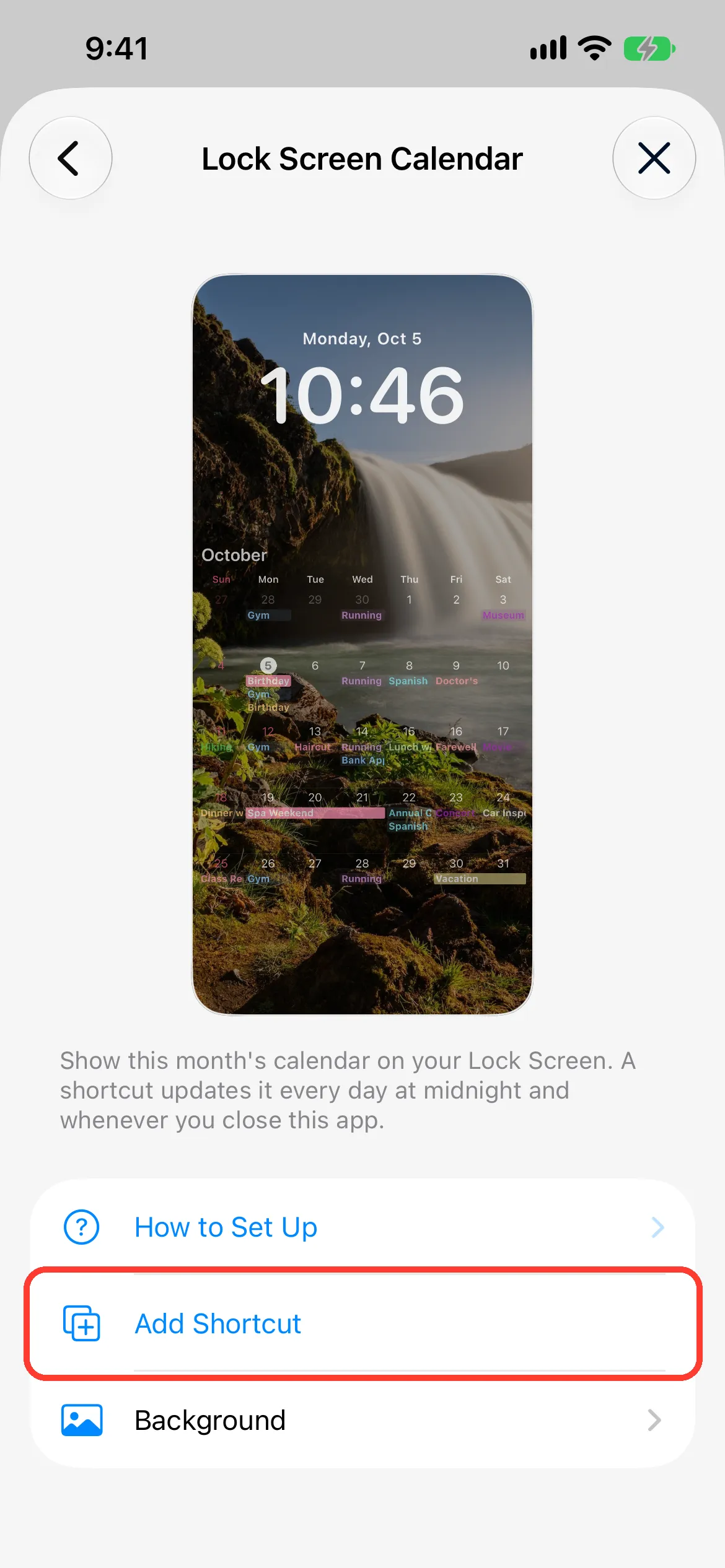
Tap Add Shortcut
In Caly, open Settings → Lock Screen Calendar and tap Add Shortcut. The Shortcuts app opens.
2
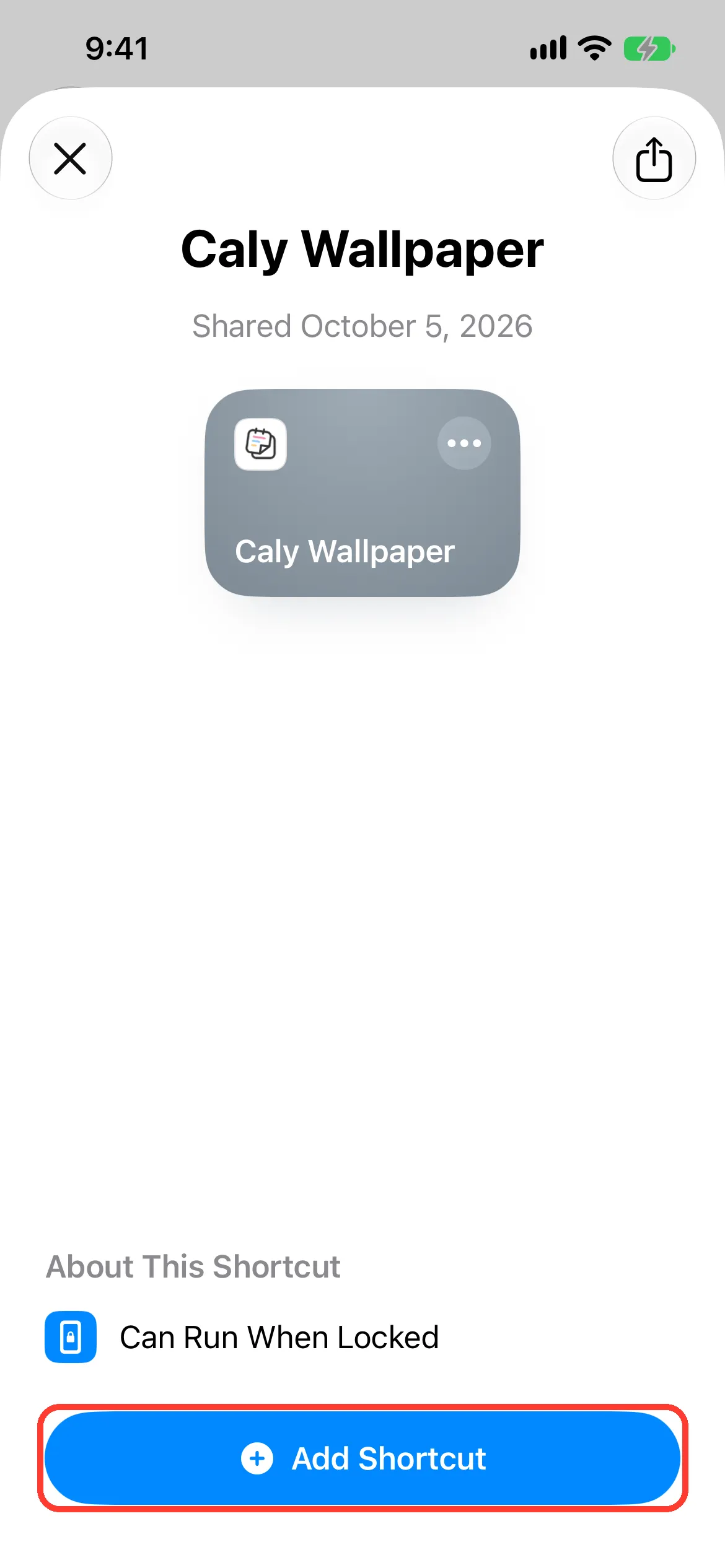
Add the shortcut
When the shortcut appears, tap Add Shortcut at the bottom.
3
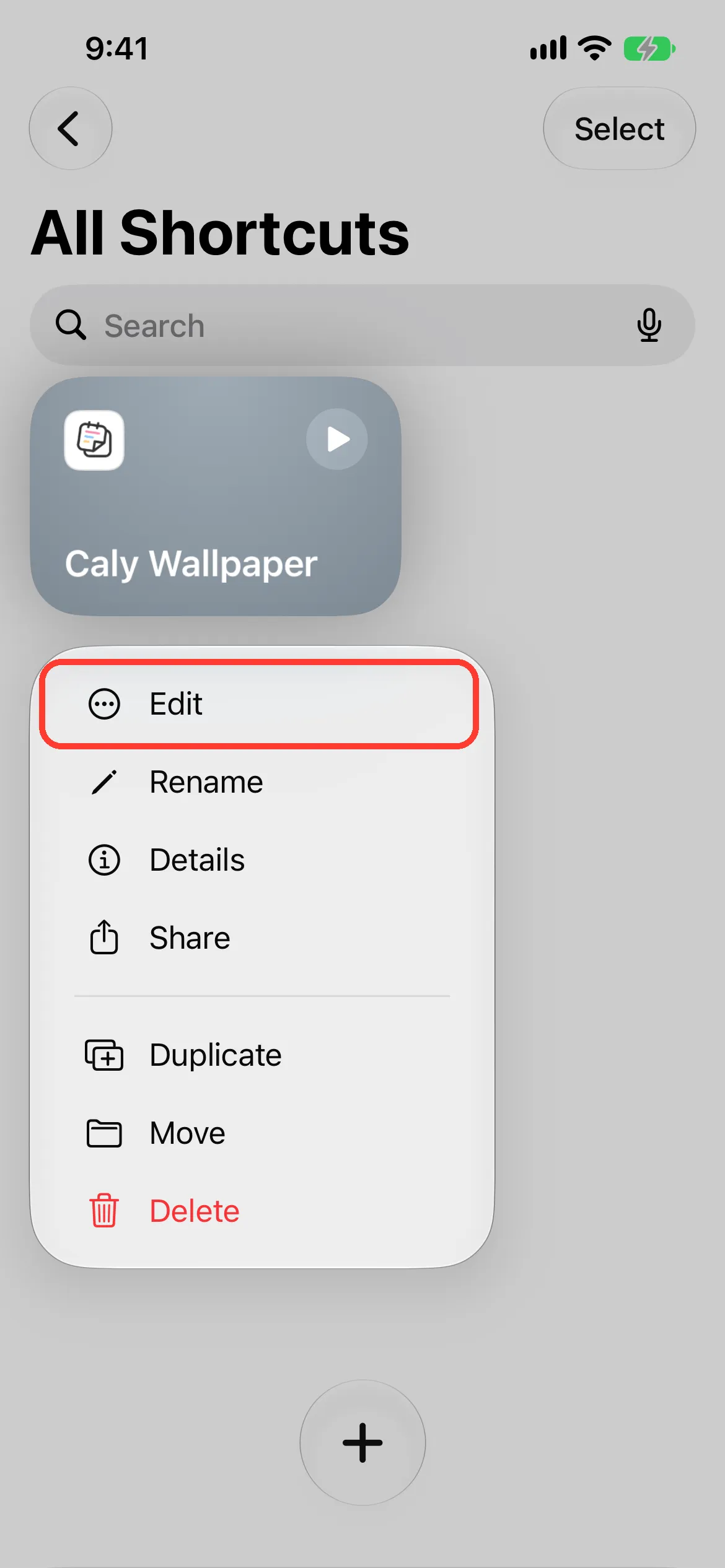
Open Edit
Touch and hold the shortcut you added, then tap Edit.
4
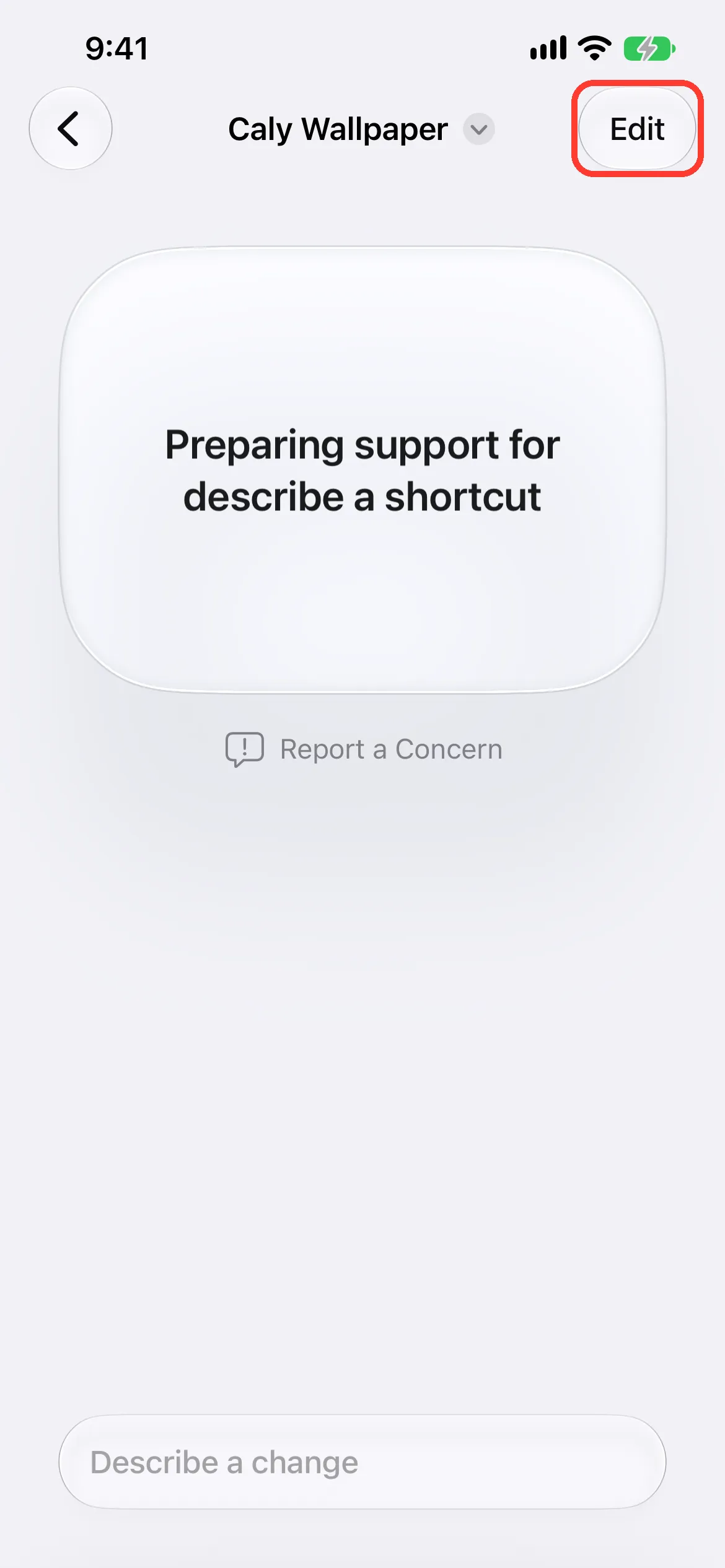
Tap Edit at the top right
The shortcut's description screen opens. Tap Edit at the top right.
5
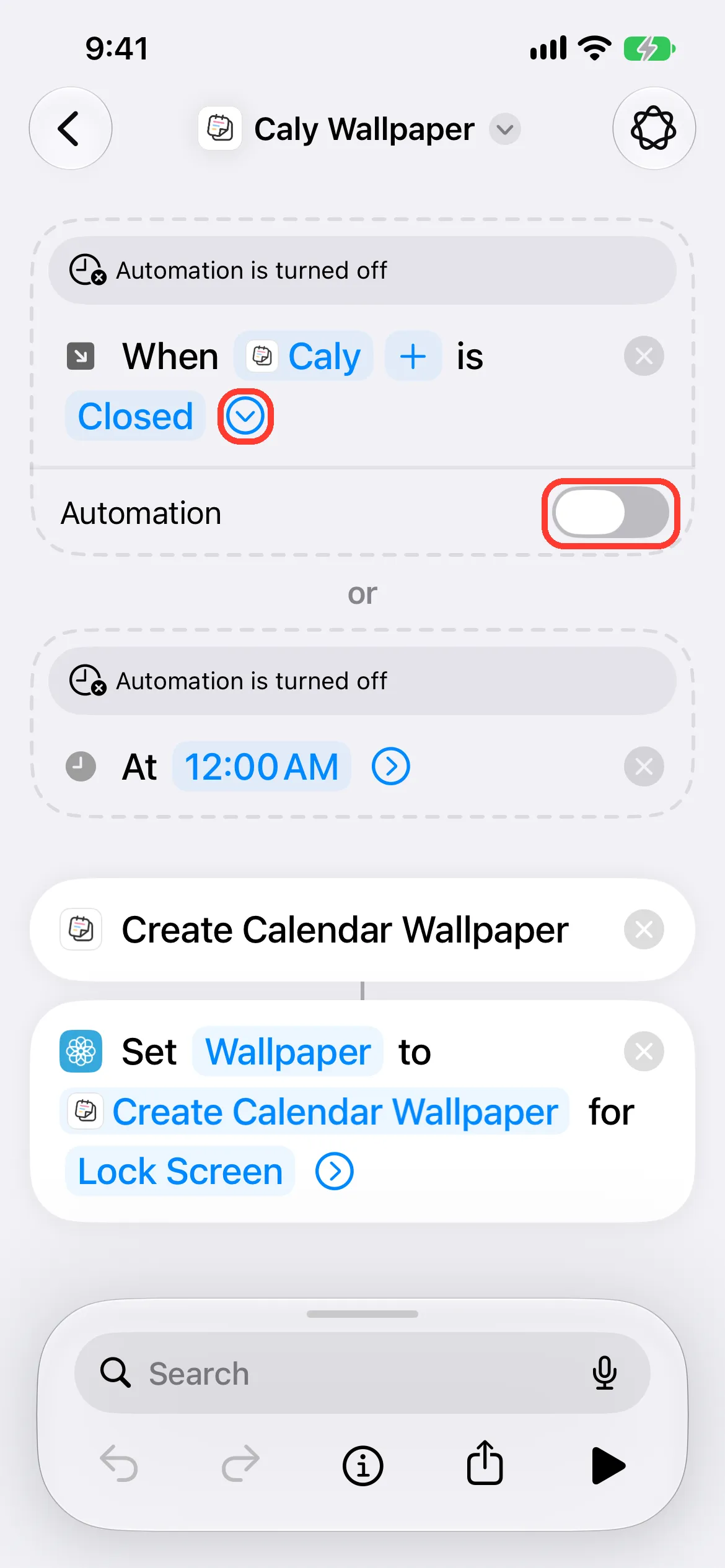
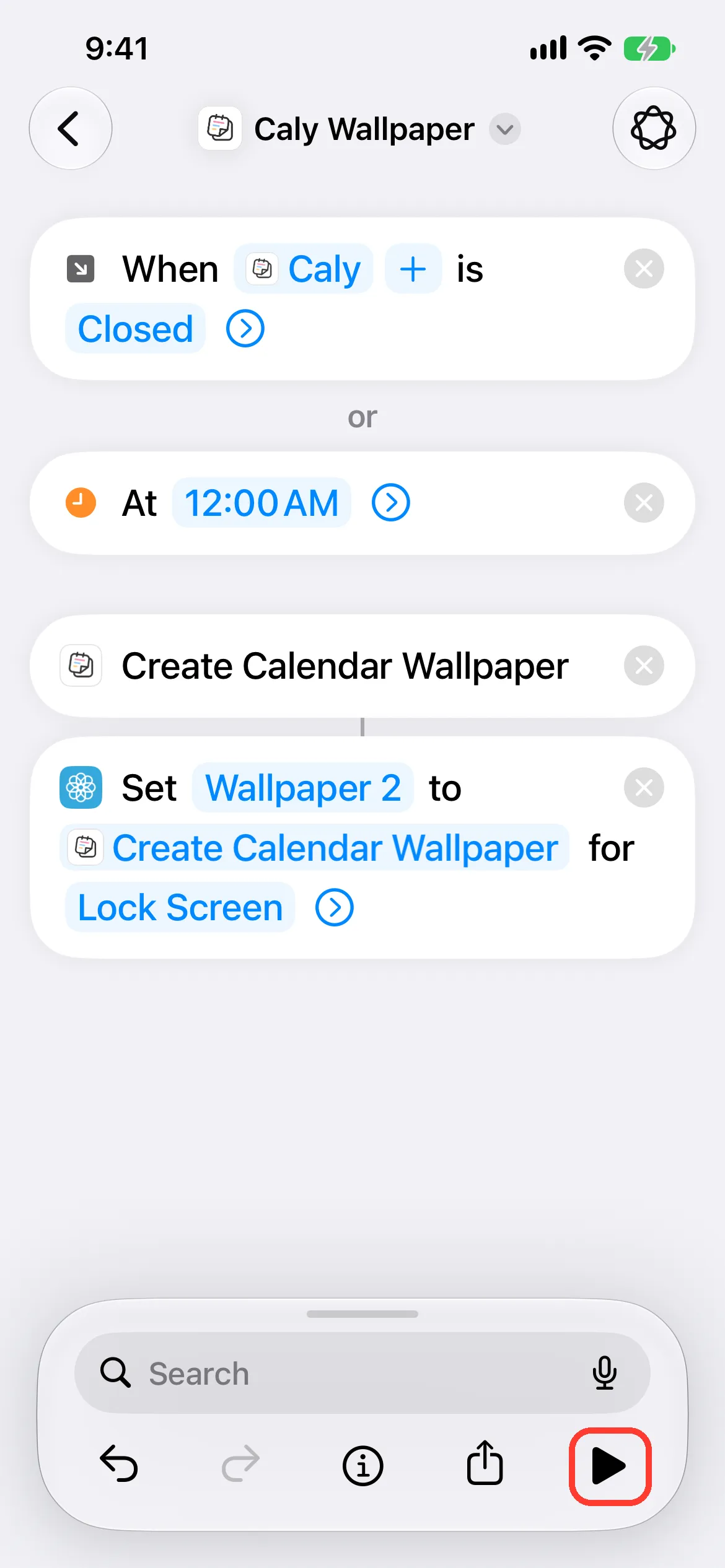
Turn on "When Caly is Closed"
Tap ⟩ on "When Caly is Closed" at the top to expand it, then turn on Automation.
6
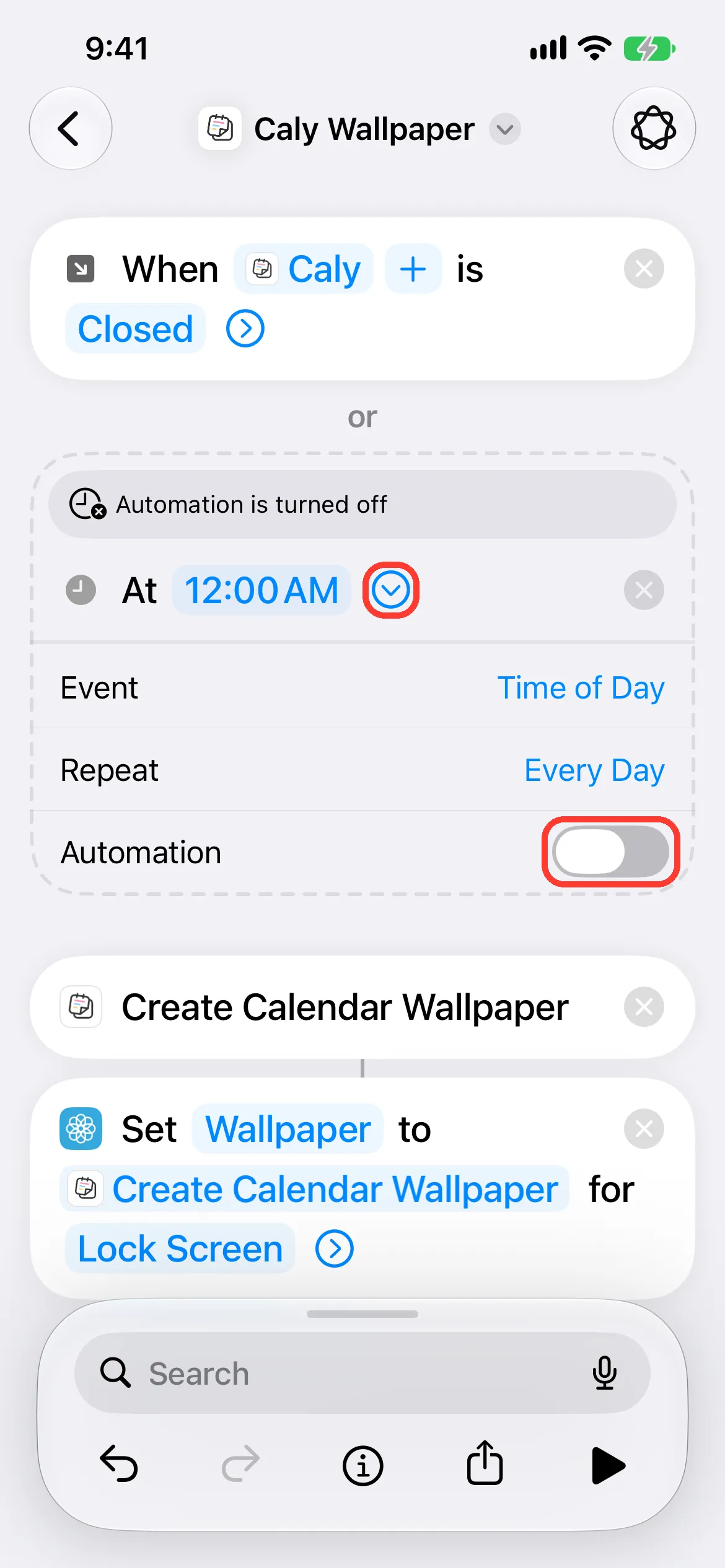
Turn on "At 12:00 AM"
In the same way, tap ⟩ on "At 12:00 AM" to expand it, then turn on Automation.
7
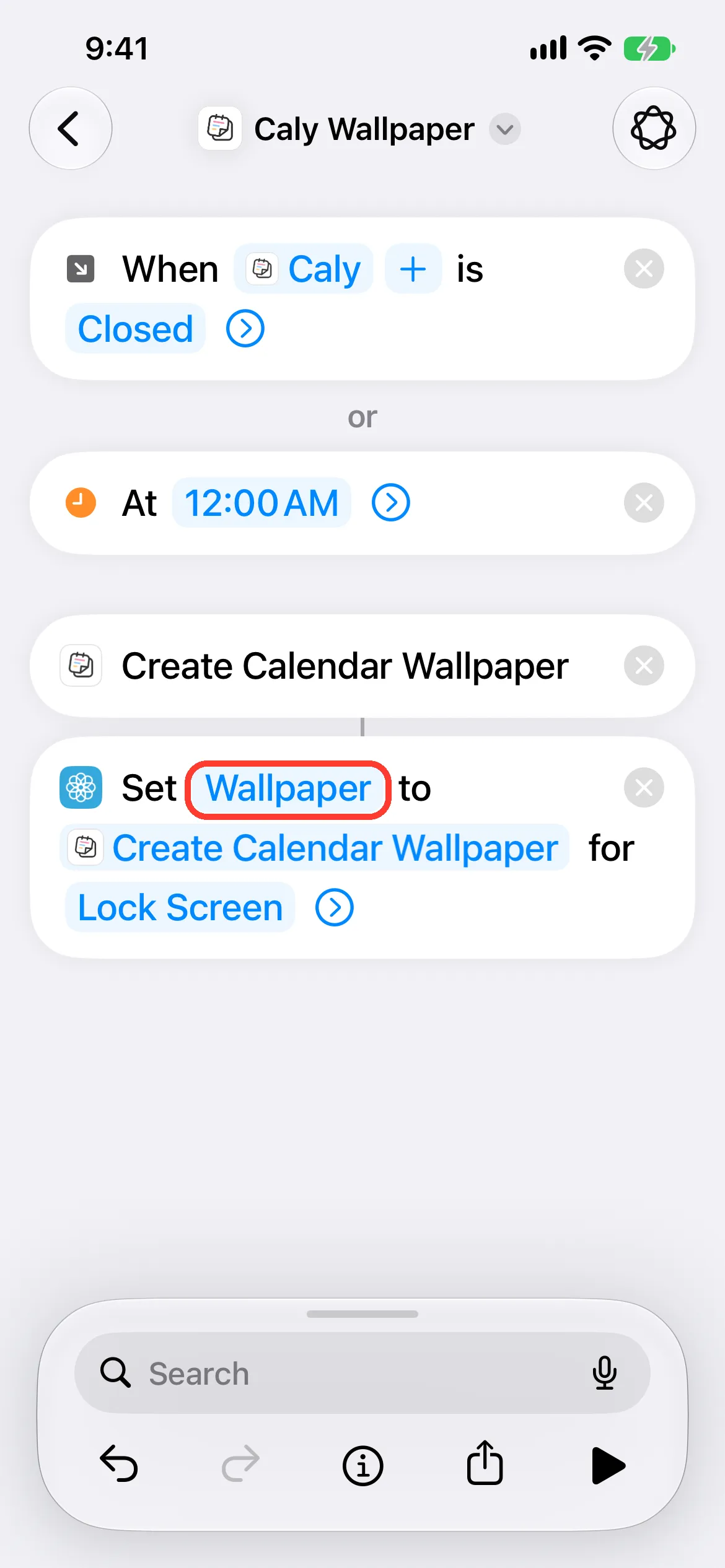
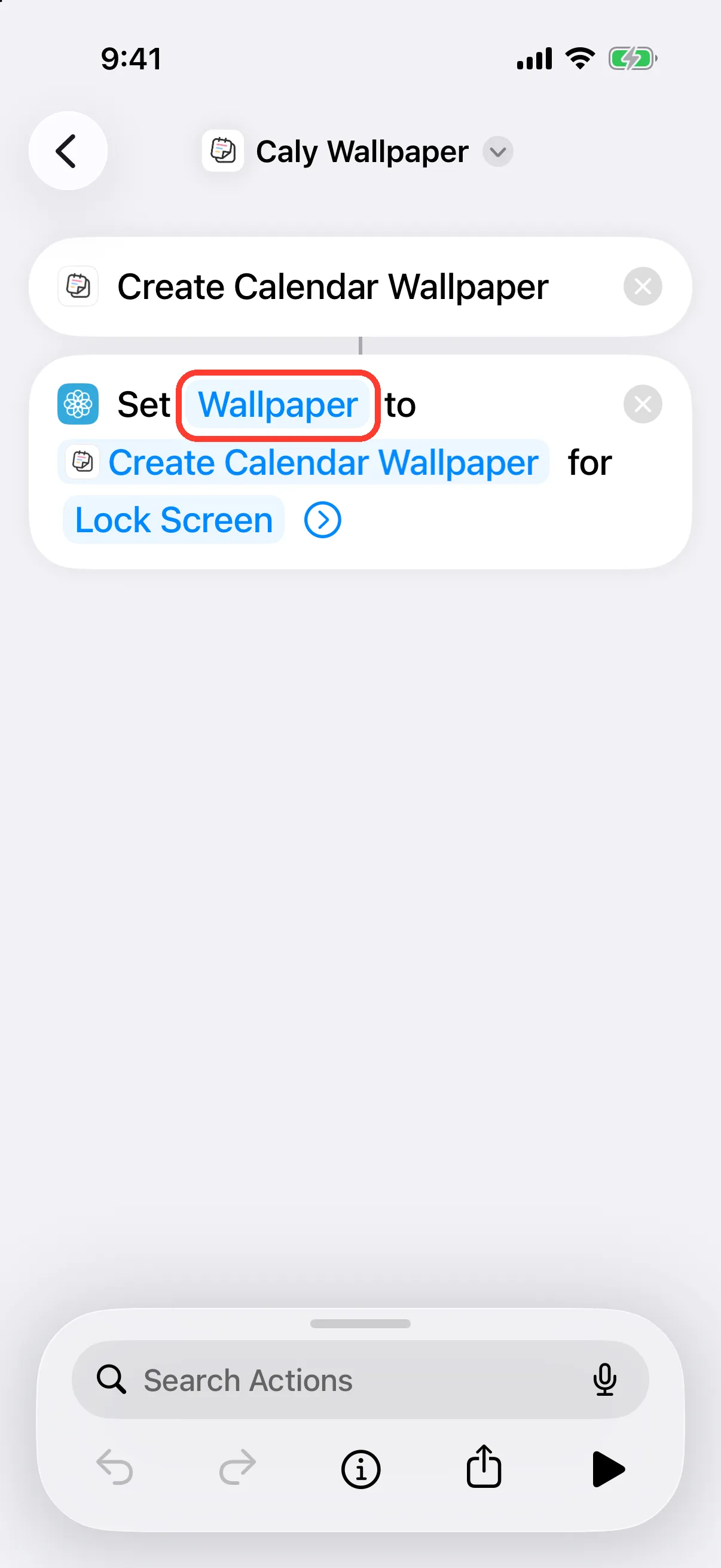
Tap Wallpaper
Tap Wallpaper in the last action.
8
Choose the Lock Screen for the calendar
Choose the Lock Screen that shows the calendar, then tap ✓ at the top right.
Tip
Choose a photo wallpaper. If you don't have one, touch and hold the Lock Screen, tap + at the bottom right, then choose Photos.

9
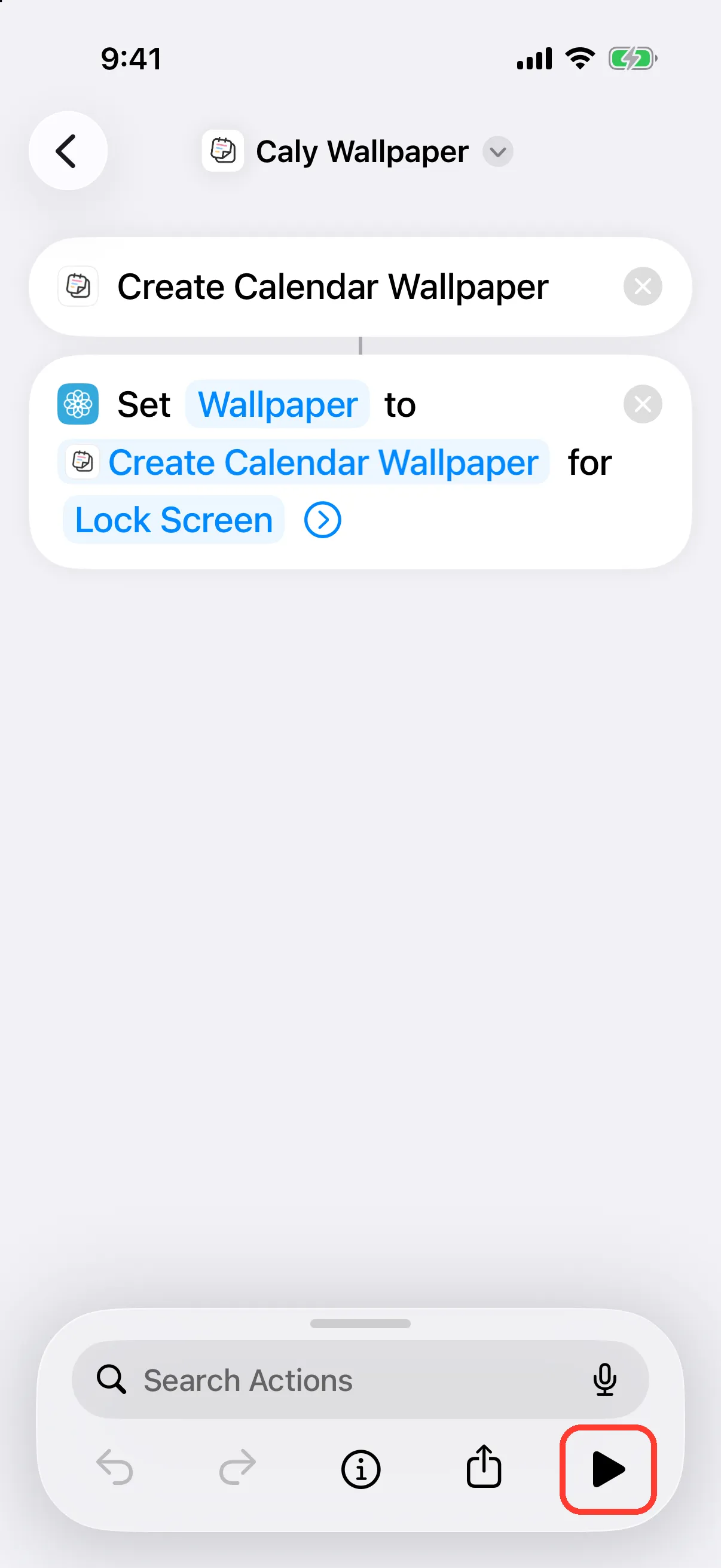
Run it once
Tap ▶ at the bottom right to run it once. The calendar appears on your Lock Screen, and after that it updates automatically every day at midnight and whenever you close this app.
Tip
If you're asked for permission the first time, tap Allow each time. Otherwise, automatic updates may stop.
10
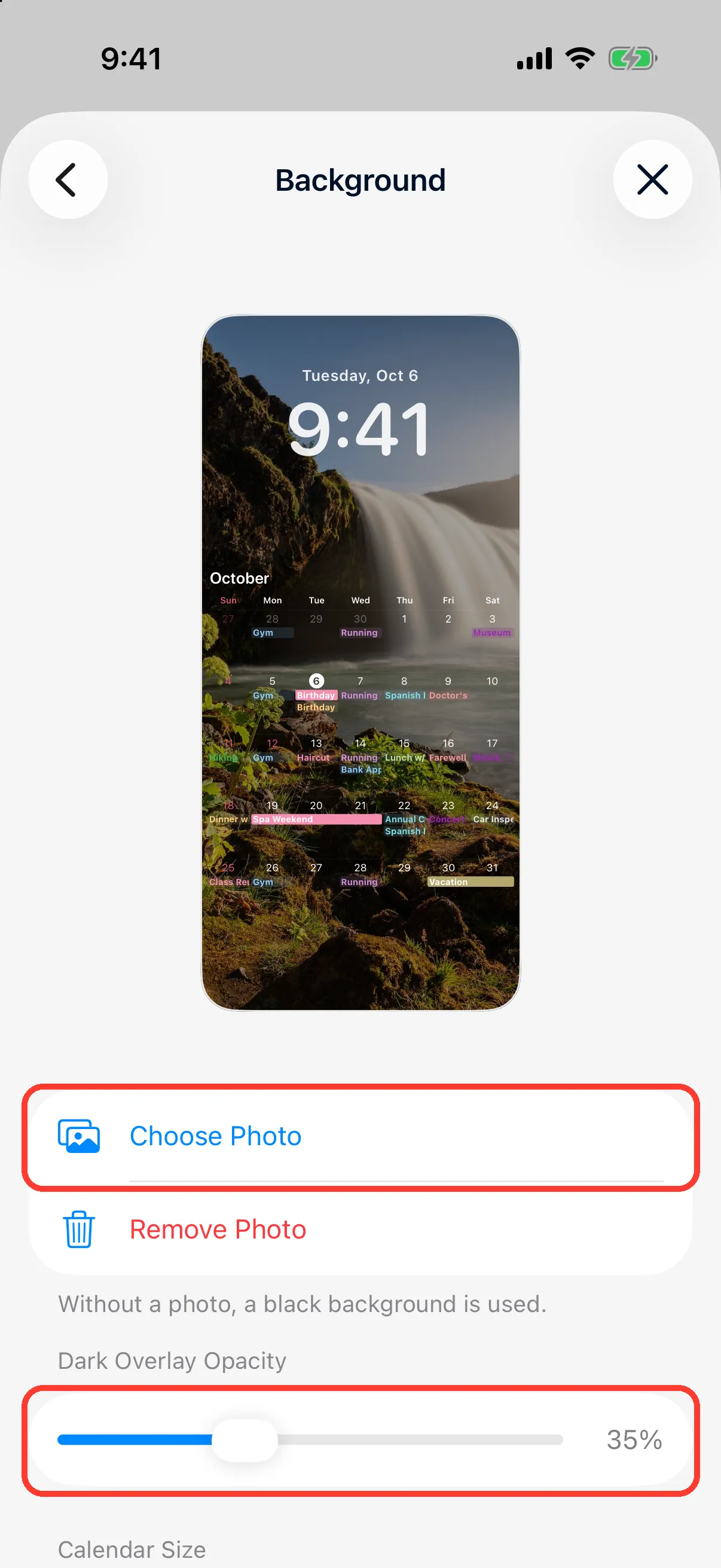
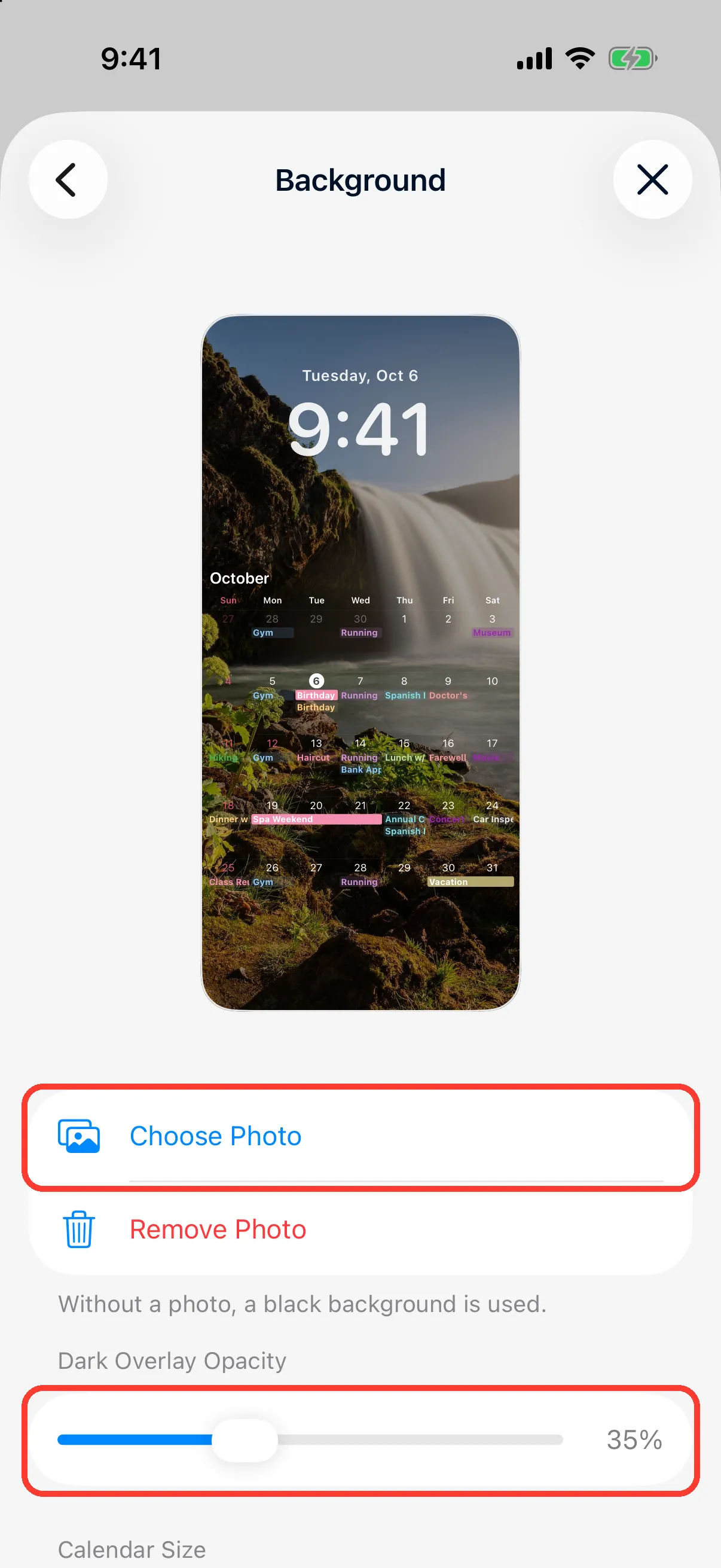
Set the background (optional)
In Settings → Lock Screen Calendar → Background, you can choose a photo to show behind the calendar and change the calendar's size and opacity. Changes appear on your Lock Screen the next time the shortcut runs.
Steps for iOS 26
1
Tap Add Shortcut
In Caly, open Settings → Lock Screen Calendar and tap Add Shortcut. The Shortcuts app opens.
2
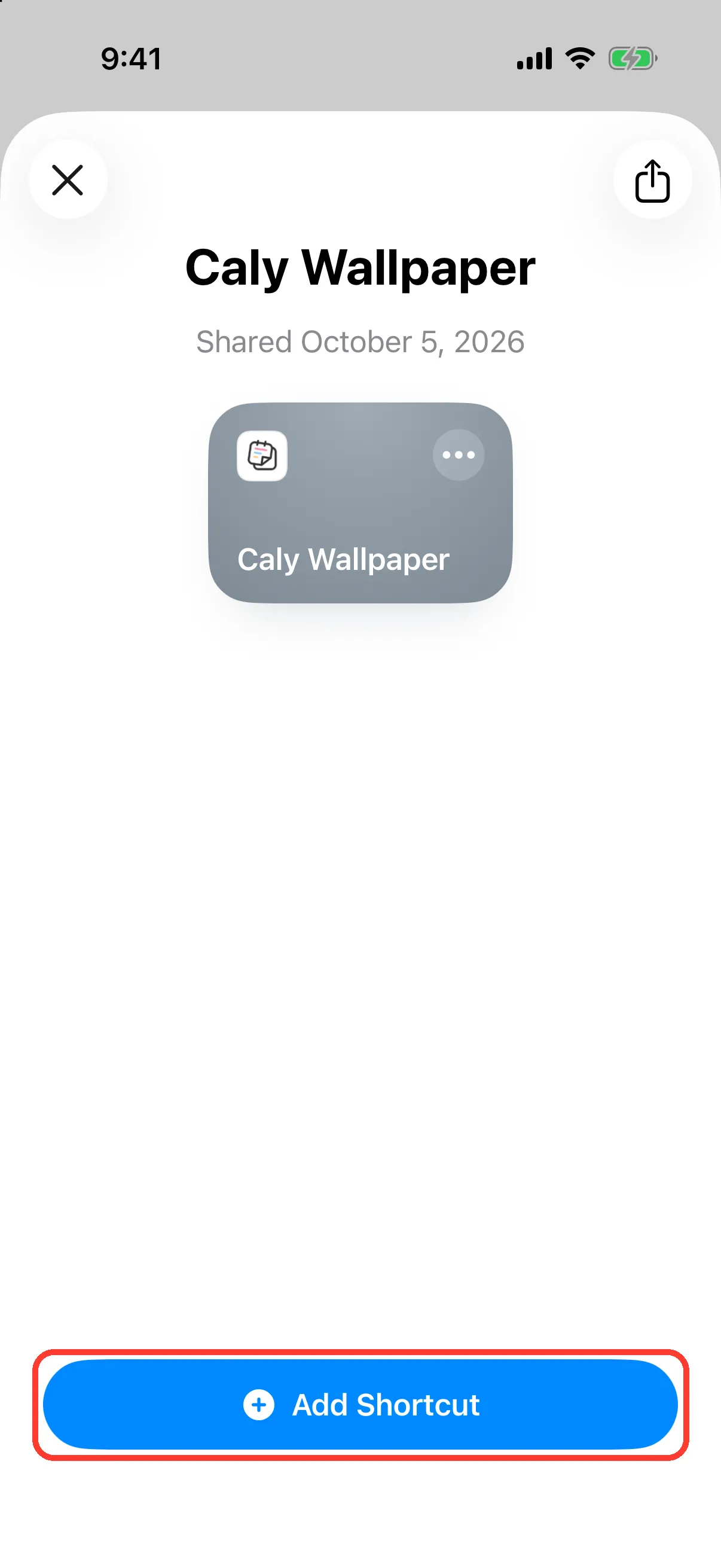
Add the shortcut
When the shortcut appears, tap Add Shortcut at the bottom.
3
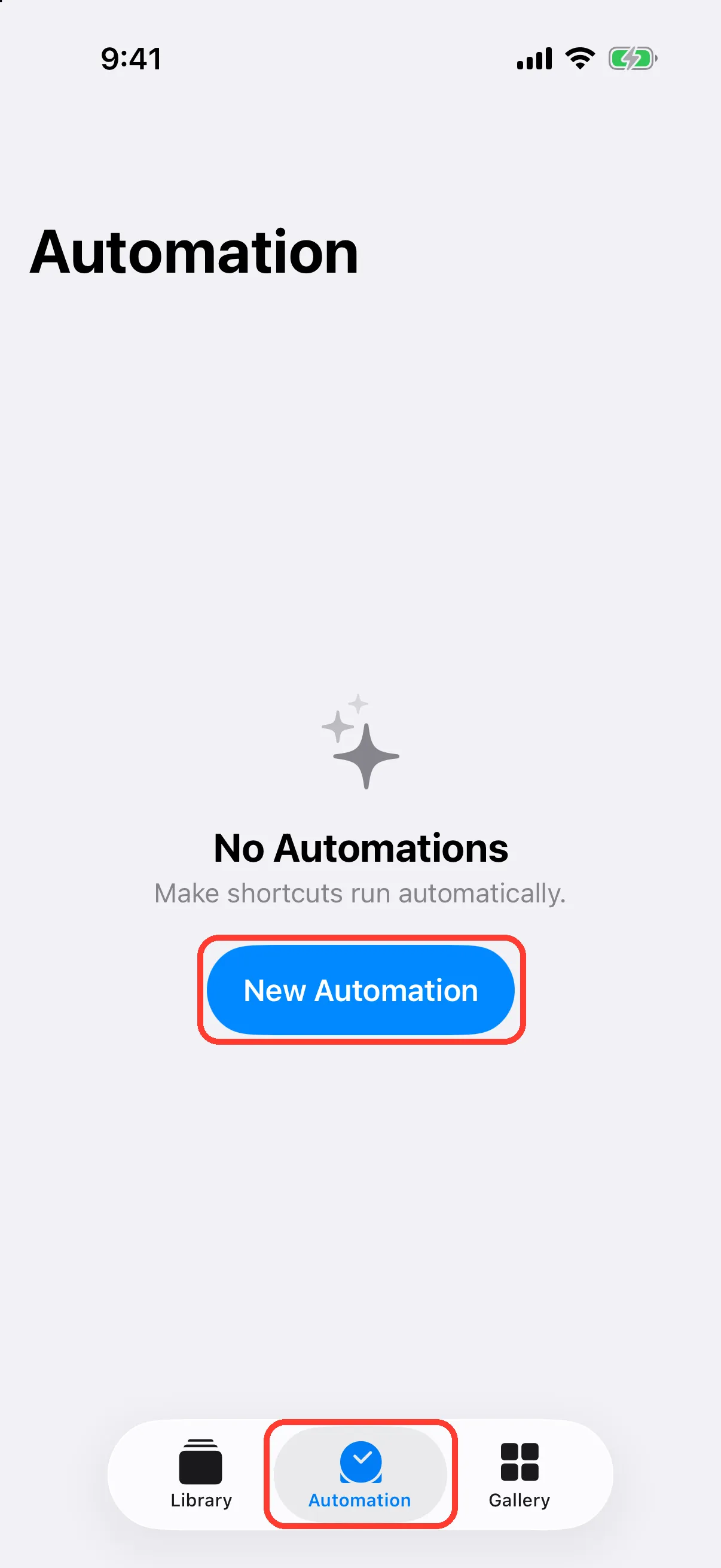
Create an automation
Tap the Automation tab at the bottom, then tap New Automation.
4
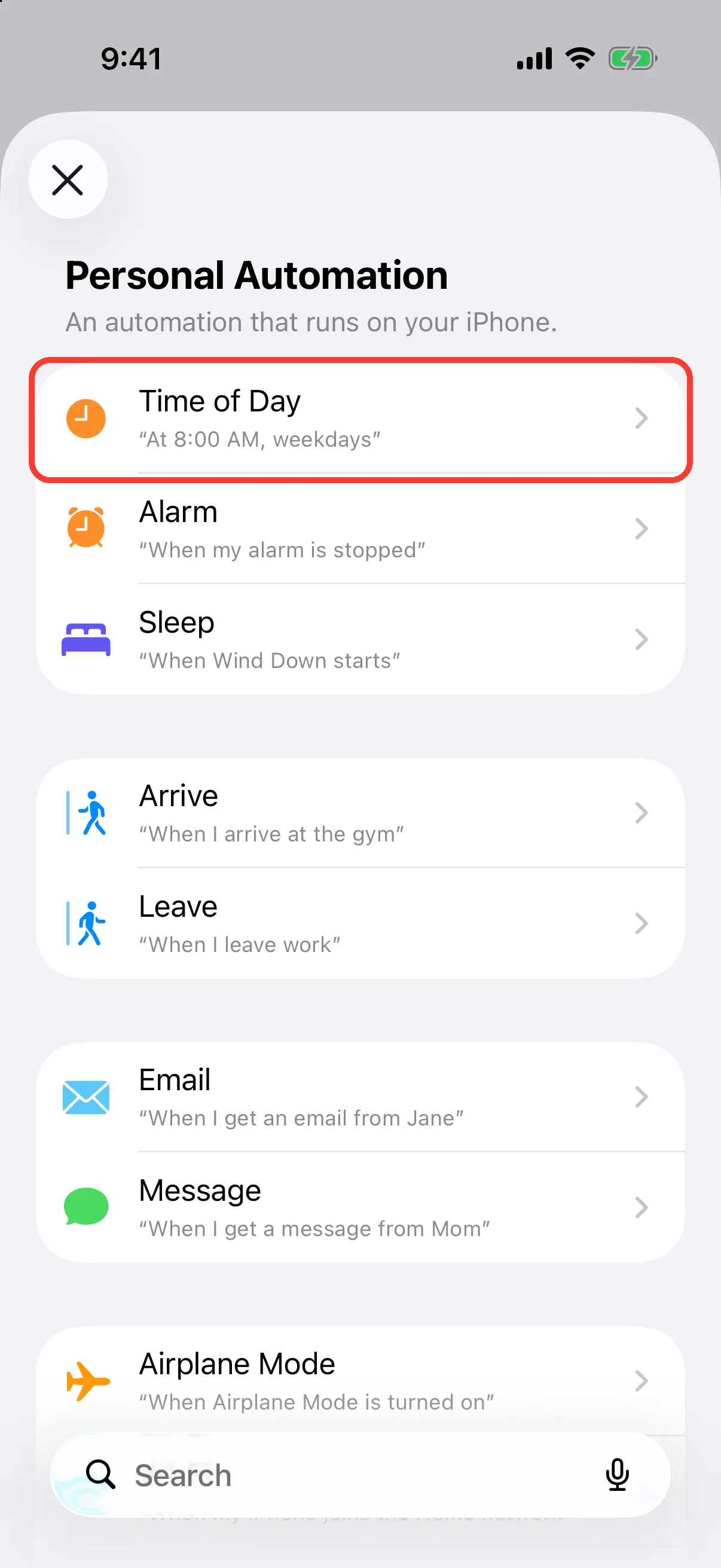
Choose Time of Day
Tap Time of Day in the list.
5
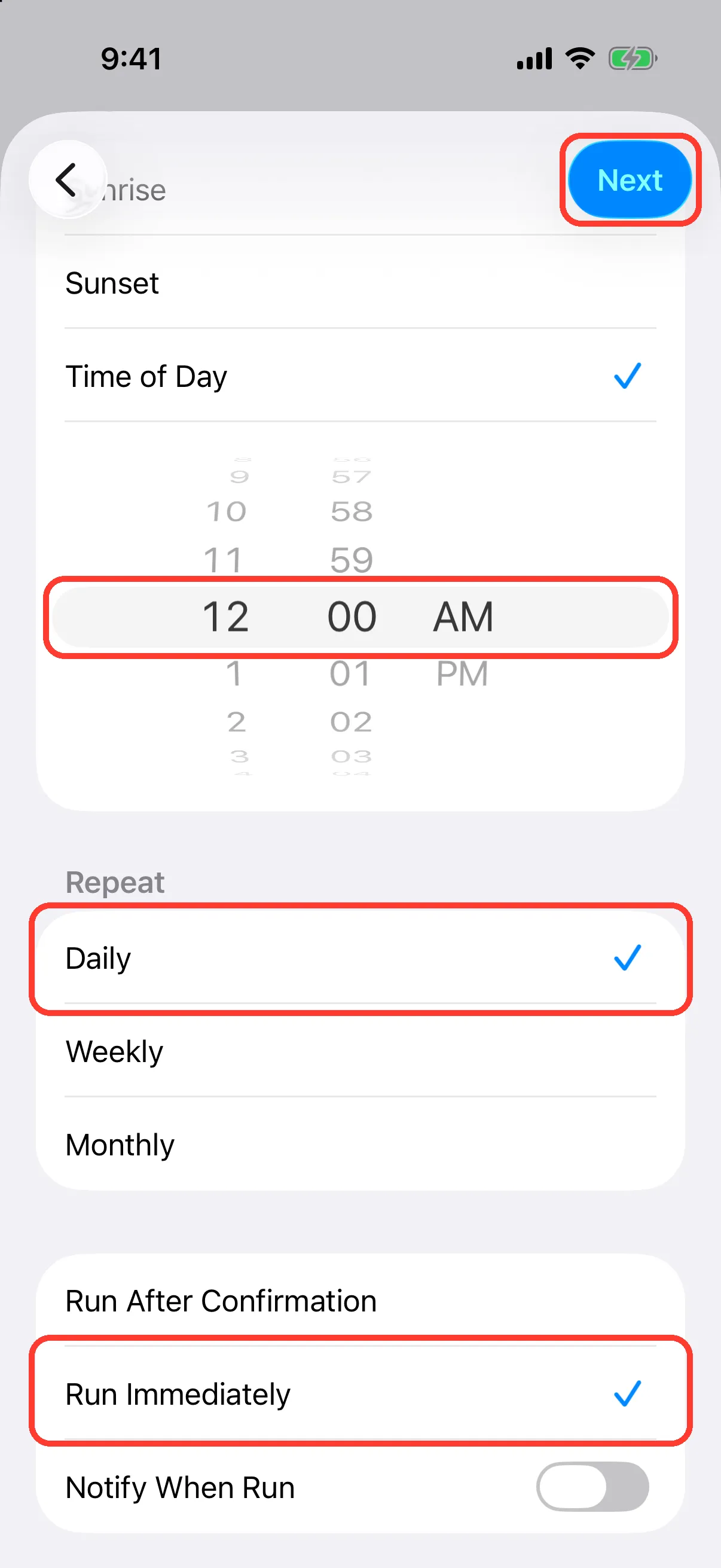
Set it for midnight every day
Set the time to 12:00 AM and Repeat to Daily, choose Run Immediately, then tap Next at the top right.
6
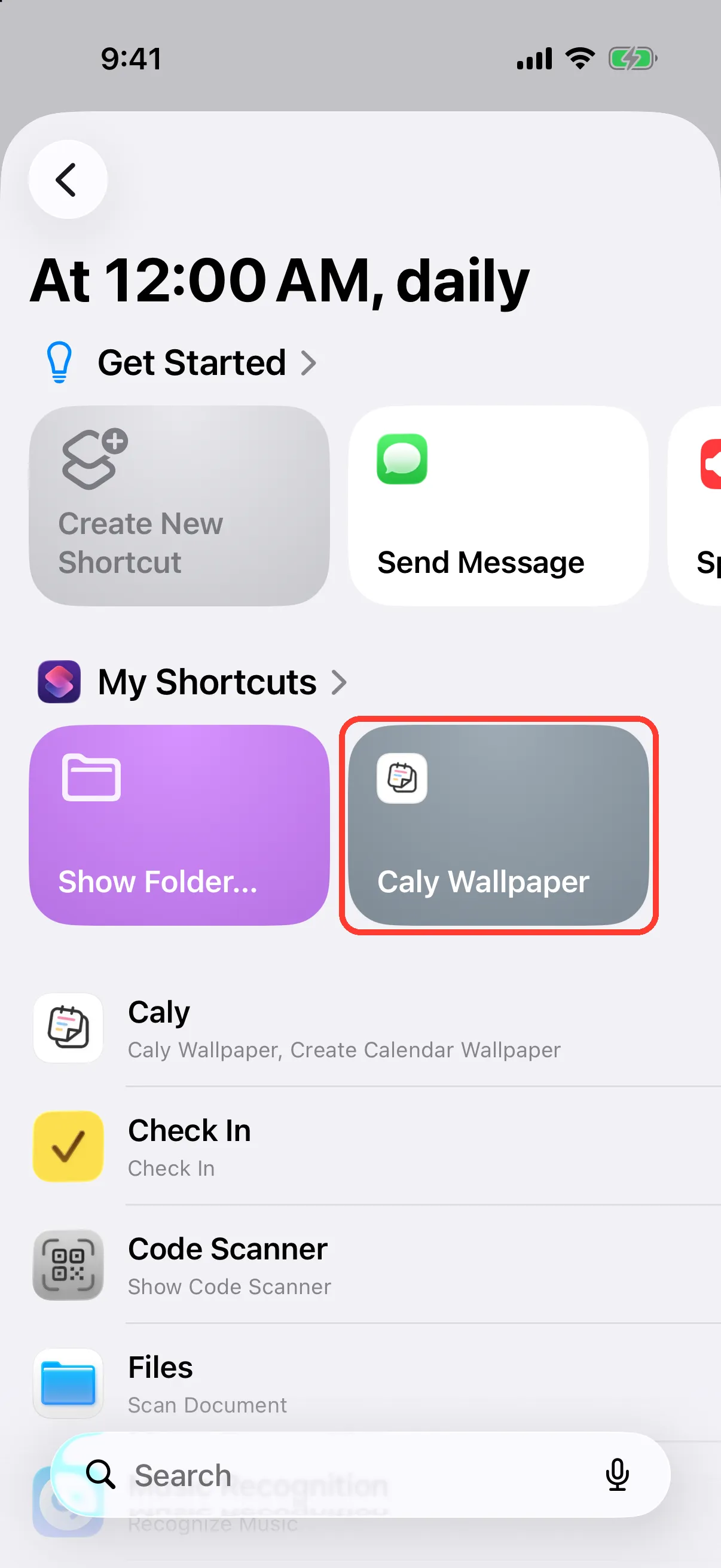
Choose Caly Wallpaper
Tap Caly Wallpaper under My Shortcuts. The calendar now updates automatically every day at midnight.
7
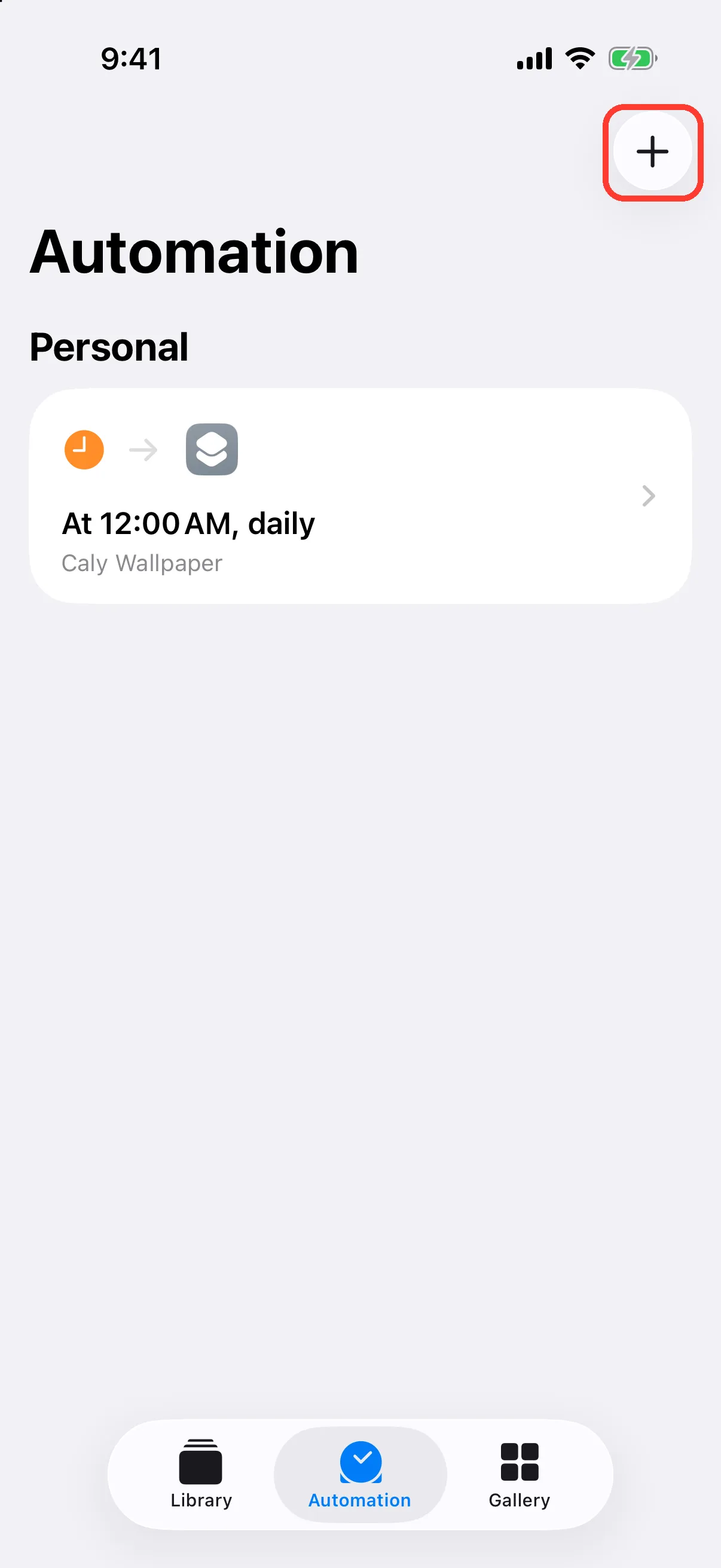
Tap + at the top right
Back in the automation list, tap + at the top right to create one more.
8
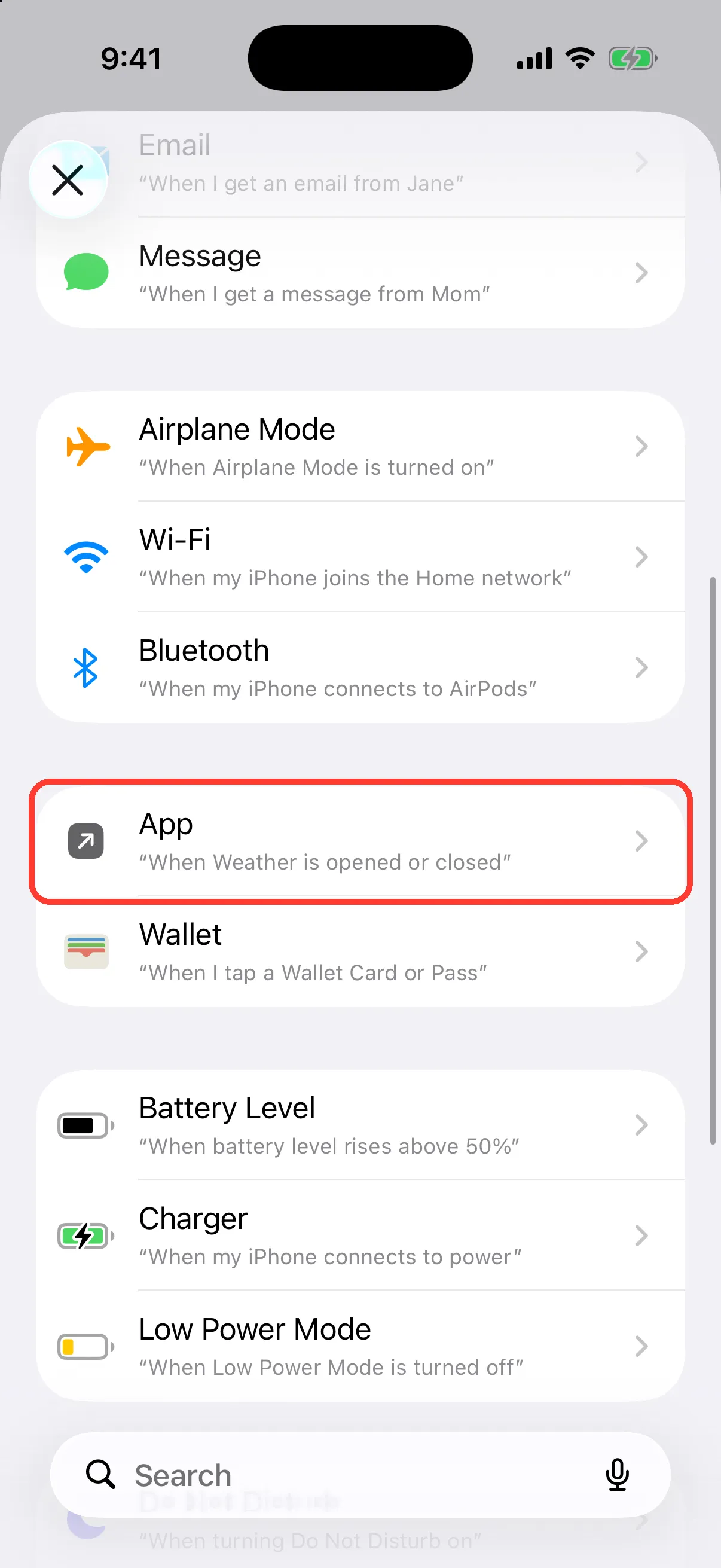
Choose App
Scroll down a little and tap App.
9
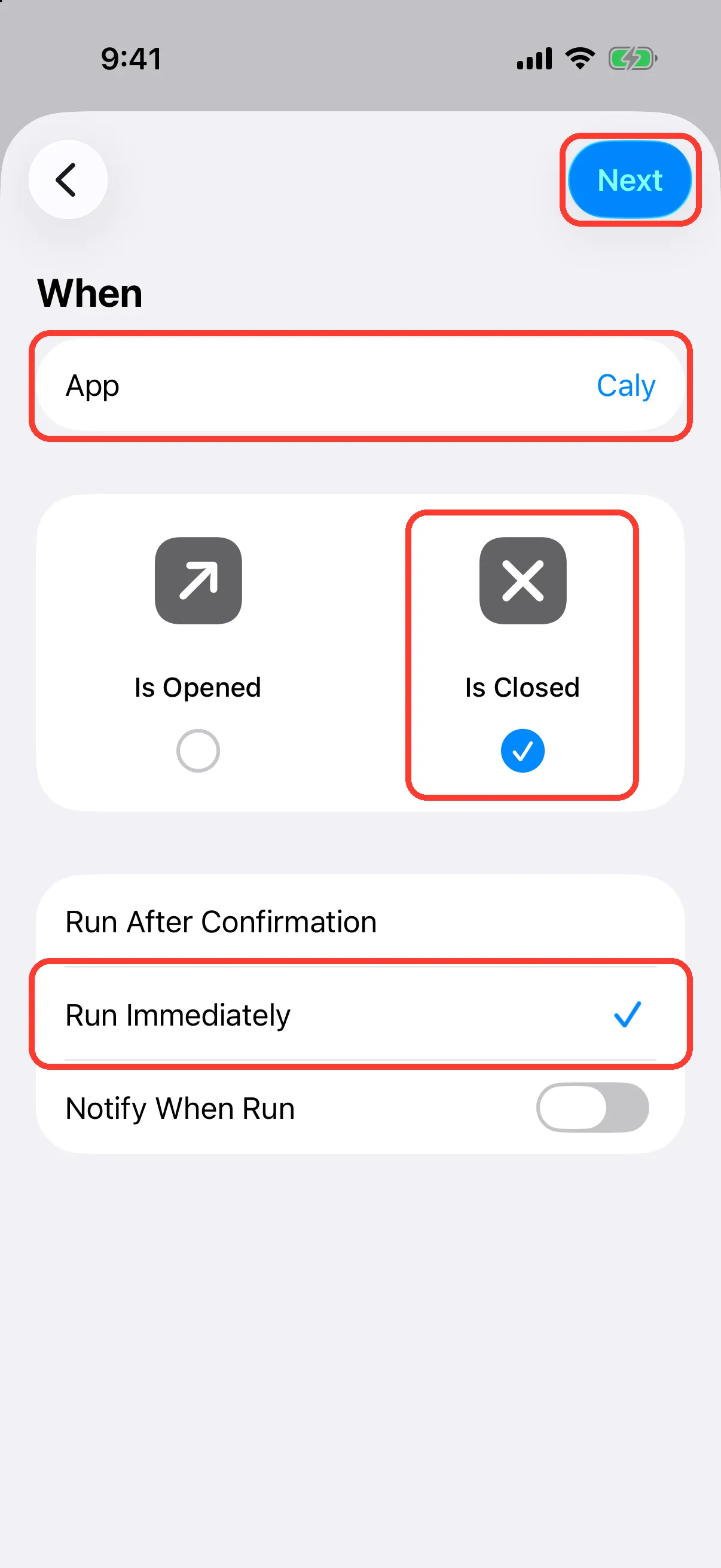
Run it when Caly is closed
Choose Caly for App and select only Is Closed. Choose Run Immediately, tap Next, then tap Caly Wallpaper.
10
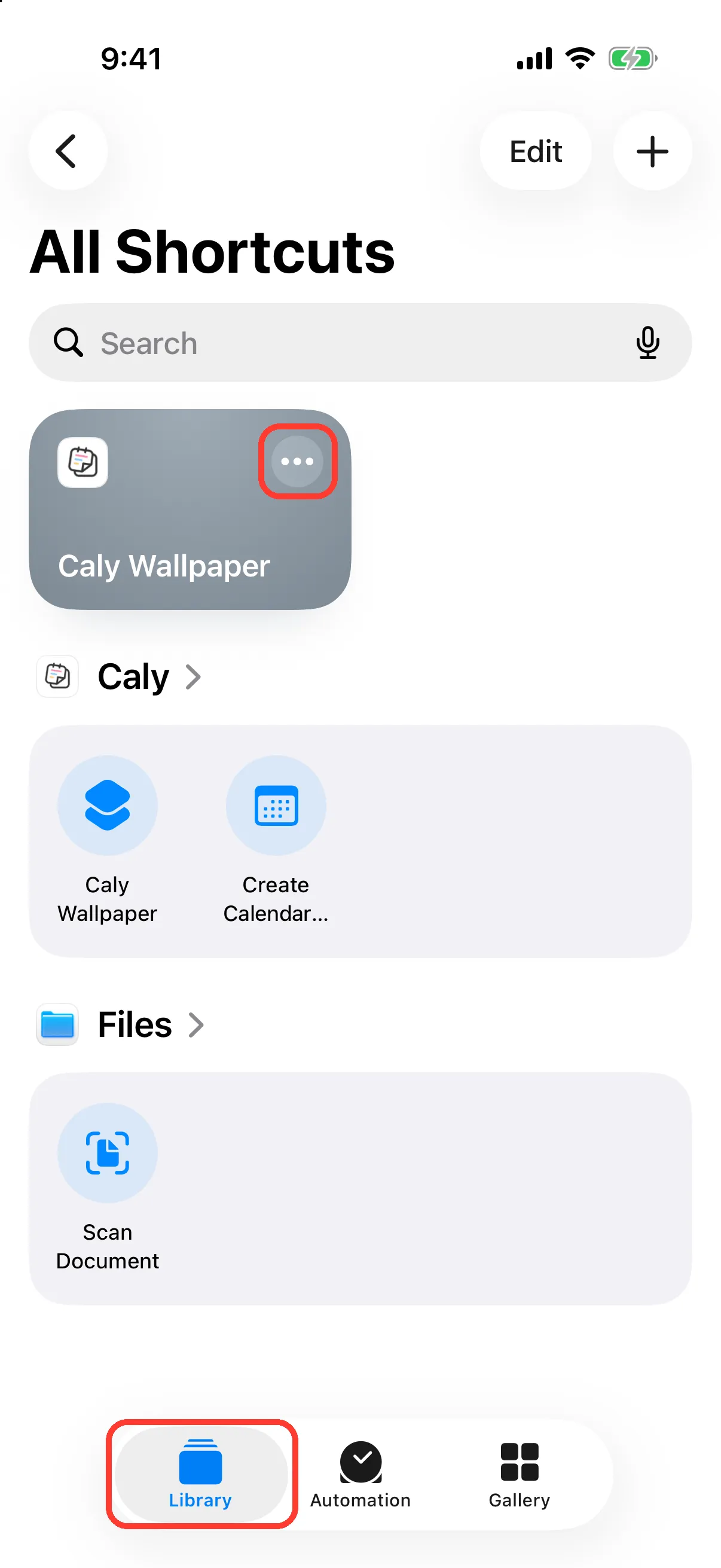
Open the shortcut
Go back to the Library tab at the bottom and tap ••• on Caly Wallpaper.
11
Tap Wallpaper
Tap Wallpaper in the last action.
12
Choose the Lock Screen for the calendar
Choose the Lock Screen that shows the calendar, then tap ✓ at the top right.
Tip
Choose a photo wallpaper. If you don't have one, touch and hold the Lock Screen, tap + at the bottom right, then choose Photos.

13
Run it once
Tap ▶ at the bottom right to run it once. The calendar appears on your Lock Screen, and after that it updates automatically every day at midnight and whenever you close this app.
Tip
If you're asked for permission the first time, tap Allow each time. Otherwise, automatic updates may stop.
14
Set the background (optional)
In Settings → Lock Screen Calendar → Background, you can choose a photo to show behind the calendar and change the calendar's size and opacity. Changes appear on your Lock Screen the next time the shortcut runs.