
GUIDE

3 Ways to Show a Calendar on Your iPhone Lock Screen

With a calendar on your Lock Screen, you can check today's events or the dates this month without unlocking your iPhone. Here are two widget-based methods and a wallpaper method, and how they differ.

How the 3 methods differ

  • Method 1: The built-in Calendar widget — The widget from the Calendar app that comes with iPhone. Easily shows your next event.
  • Method 2: A calendar app's Lock Screen widget — Add a widget from a calendar app that supports it. Some apps offer views the built-in one doesn't, such as two weeks at a glance.
  • Method 3: Use the calendar as your wallpaper — Show this whole month's calendar as your Lock Screen wallpaper. It's larger than a widget and shows a full month of events.

If you only need your next event, use a widget. If you want to see the whole month and your free days, use the wallpaper.

Method 1: Add the built-in Calendar widget

  1. Touch and hold the Lock Screen, then tap Customize.
  2. Choose Lock Screen, then tap the widget area below the clock.
  3. Choose Calendar from the list and add the widget you want.
  4. Tap Done at the top right.

Events from the iPhone Calendar app are shown.

Method 2: Add a calendar app's Lock Screen widget

The steps are the same as Method 1 — just pick your calendar app from the widget list.

Caly, a simple calendar app, offers three Lock Screen widgets for free:

  • Schedule — Shows today's events.
  • 2 Weeks — Shows this week and next week as a calendar.
  • Add Event — Tap it to open the new event screen right away.

Along with Caly's own events, it can show events from the iPhone calendar (iCloud, Google Calendar, and more). See Calendar Sync for how to sync.

Method 3: Use this month's calendar as your wallpaper

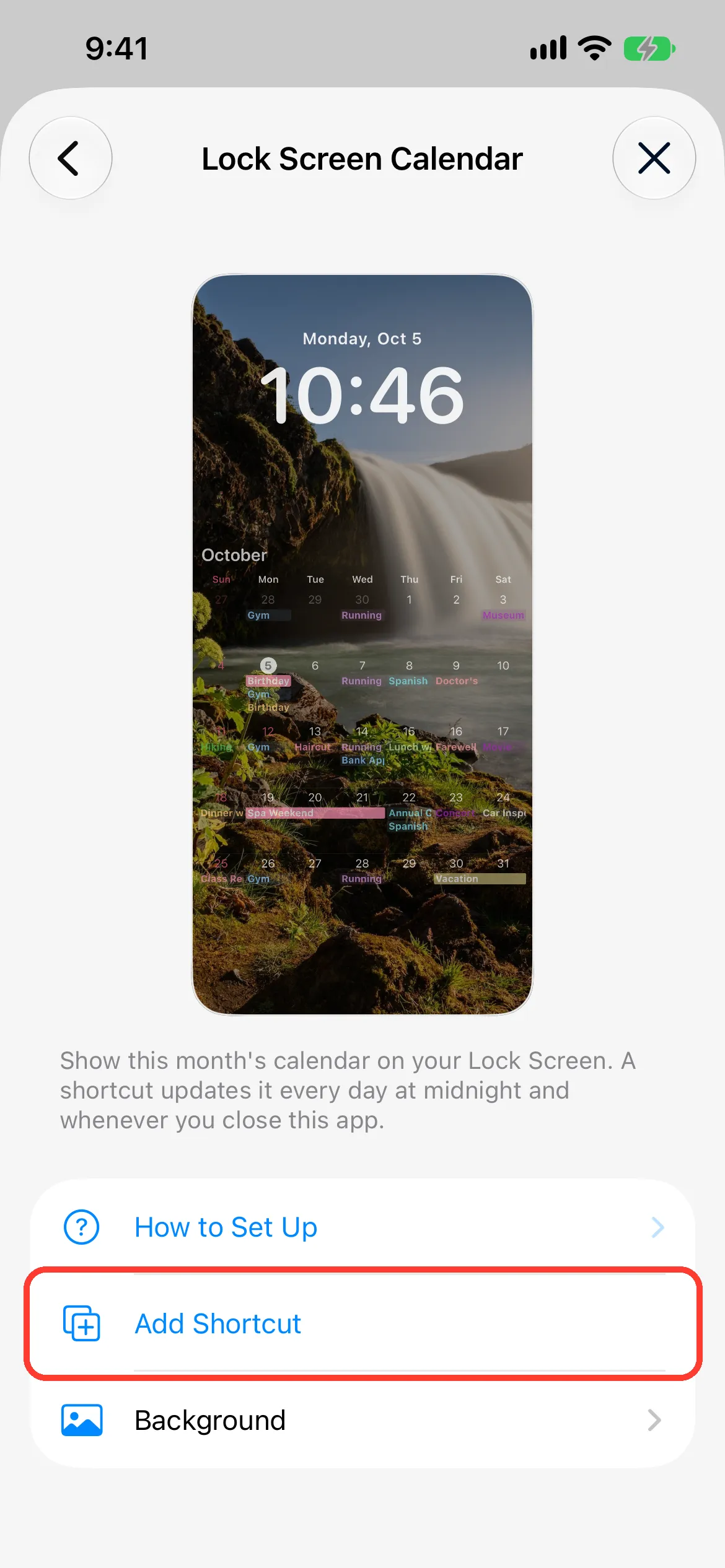
With Caly's Lock Screen Calendar, you can set this month's calendar — with your events — as your Lock Screen wallpaper. The calendar is placed over a photo of your choice, so your Lock Screen still looks the way you like.

  • Available on iOS 26 or later.
  • Works with the Shortcuts app and updates automatically every day at midnight and whenever you close Caly.
  • Set it up from Settings → Lock Screen Calendar in Caly.

Step-by-step instructions with screenshots are in Lock Screen Calendar (iOS), with separate steps for iOS 27 or later and iOS 26.

Caly's Lock Screen Calendar screen with a preview of the calendar over a photo

FAQ

When does the Lock Screen calendar update?

Widgets are updated by iPhone automatically. Caly's Lock Screen Calendar (wallpaper) updates every day at midnight and whenever you close Caly.

Can I show a calendar on the Lock Screen on Android?

Caly's Lock Screen widgets and Lock Screen Calendar are iPhone features. On Android, use a home screen widget instead — see How to Choose and Set Up a Calendar Widget.

Caly is free to download

Download on the App StoreGet it on Google Play

Related guides

Lock Screen Calendar (iOS)→Widget Setup (iOS)→How to Choose and Set Up a Calendar Widget→